Ledger Setup
Giving an external accountant appropriate software access
Define an external accountant's tasks and files, check invitation rights and review access when the engagement changes.
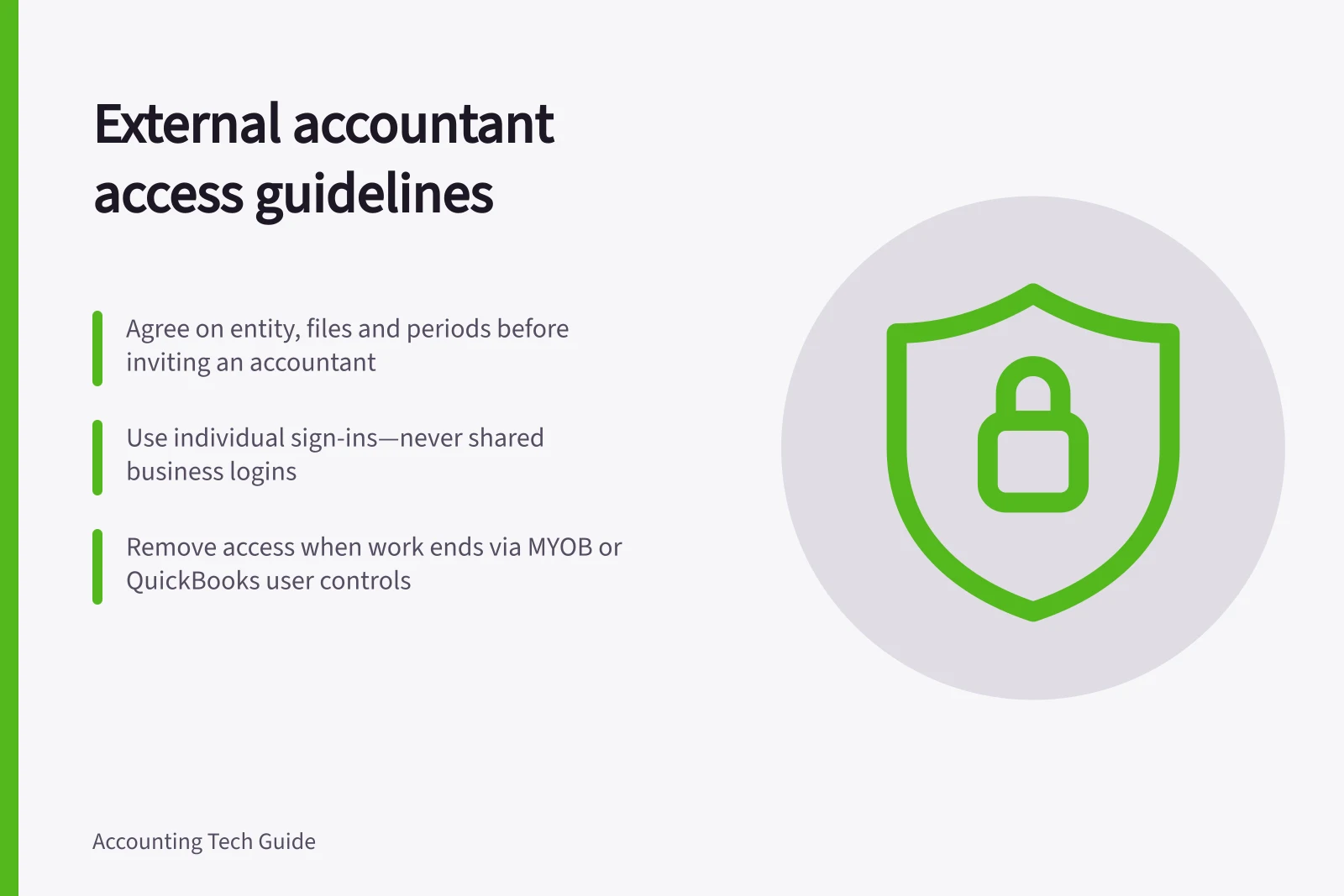
Before inviting an external accountant, agree which entity, files and periods they will work on, what they may do, and how long access is needed. Match the invitation to that work, then verify the accepted account and remove access when the work ends.
Give the accountant an individual sign-in, not a shared business login. Individual logins support a more reliable audit trail for who entered or changed transactions.
Agree on the work
Name the entity, files and periods in scope, the records needed, the changes the accountant may make, and who approves them. Viewing a report is different from editing the ledger.
If the engagement includes BAS or tax work, agree review and lodgement responsibilities separately; software access does not settle them.
Confirm the accountant’s individual email address before sending the invitation. MYOB notes that an invitation sent to the wrong address may not be accepted.
After acceptance, check the active account, assigned role and files it can reach. Keep a record of the approved access and use an individual sign-in to help attribute activity.
Check the invitation route
MYOB Business: An Owner or Online Admin can invite an Advisor from Settings > Users and permissions > Create advisor. Enter the Advisor’s name and email, then select Save and send invitation; the invitation is sent to them to accept and log in with, or create, a MYOB account.
An Advisor receives the Administrator role and Advisor user type, with access to all MYOB Business files under the same serial number. For a single-file review, invite a User instead and use MYOB’s controls to limit which files and parts of a file they can access.
The MYOB Users page shows an invitation as pending until it is accepted. Owners, Advisors and Online Admins can access that page and add or remove users; a File User with the Administrator role can view it but cannot add or remove users.
QuickBooks Online: A primary or company admin signs in, selects Settings > Manage users > Accounting Firms > Invite firm, enters the accountant’s email address or firm user ID, and selects Save. If two-step verification is enabled, enter the code received on the mobile device and select Continue.
The accountant receives an email invitation to the company and accepts it; if they do not have QuickBooks Online Accountant, the email includes a sign-up link. On the Manage users page, their status changes from Invited to Active. Accountant users invited this way do not count towards the user limit.
The Accounting Firms invitation provides accountant-specific tools and company access. If using a plan role instead, In house accountant provides bookkeeping and financial-reporting tools but not payroll, role management or admin tasks; Standard all access is broader, and Company admin can access everything, including admin tasks.
Xero: Sign in, open the organisation’s settings, select Users > Invite a user, enter the accountant’s email address and name, choose a role, then send the invitation. Check that the intended organisation is selected before sending.
Xero’s previous Advisor role has been renamed Administrator. Administrator gives full access to all areas; use it only when the agreed work requires that breadth. Standard is also broad, while Sales, Purchases, Sales and purchases, Draft sales and purchases and Viewer provide narrower access.
For bills in Xero, check the separate permissions for creating and approving them against the agreed work. Xero states that roles and permissions control who can create and approve bills.
Key facts about external accountant access across platforms
- MYOB Advisor role
- Full access to all files under one serial number
- QuickBooks Accounting Firm invite
- Does not count toward user limit
- Xero bill permissions
- Separate from user roles; controlled independently
Keep the engagement traceable
Give the accountant a dated brief with the entity, period, questions and source records. If changes require business approval, ask for the proposed adjustment and its reason before posting.
Retain the approval decision, entry reference and affected report version. A product history may show an edit without explaining why it was authorised.
Review access when the task changes and when it ends. Remove the accountant’s individual access through the product’s user controls; MYOB’s Users and permissions page supports removing user access.
Keep an internal owner for the access decision.