Ledger Setup
Removing access after a contractor engagement ends: handover
Hand over unfinished accounting work, remove contractor access across files and connected services, and confirm records remain retrievable.
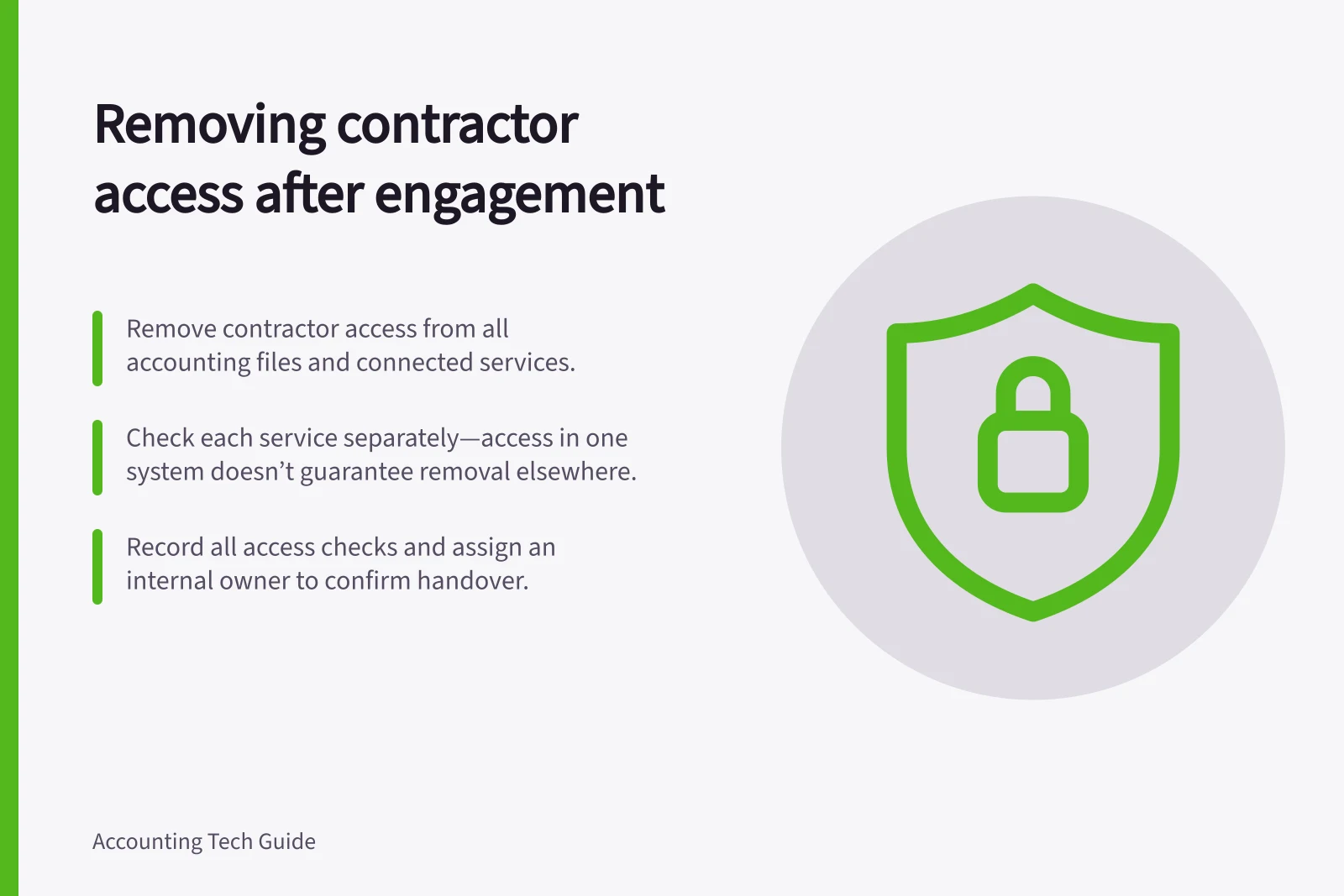
At the agreed end of a contractor’s work, remove their access from each accounting file and check every known connected service they used. Assign an internal owner to hand over the work and record the access checks. Preserve the work and its history before closing accounts.
Hand over the work
Confirm the end date, individual login, any practice access, business files and connected services. Identify entries awaiting correction, reports to retain and recurring work that needs a new owner. Make sure the business can retrieve source documents and reviewed report versions.
Check each known connected service separately and record whether the contractor’s access has been closed. Removing access from an accounting file does not confirm that access to a connected service has also been removed.
A later question is not a reason to leave an account active indefinitely. Retain the records and arrange a new, scoped invitation if further work is commissioned.
Close each access route
- Have an authorised administrator remove the contractor's access through the accounting product's supported control. Record the account, file and time.
- Check for another user account, practice access, other business files and connected apps. Resolve each route separately.
- Review related bank portal, payment service, document store and shared inbox access. Change shared credentials the contractor knew and transfer ownership of integrations or scheduled work.
- Have another authorised person compare the final user and connection lists with the access checklist. Record any remaining route, its owner and removal date.
In MYOB Business, open Settings (⚙️) > Users and permissions to reach the Users page, where you can check a user’s status and remove access. An Owner, Online Admin or Advisor can add or remove users; a File User with the Administrator role can view the page but cannot remove users.
Removal by Online Admins and Advisors is still being rolled out. If the option is not available in the file, the Owner can remove the user. An Advisor can add, edit or remove practice staff in their practice software, so check that access separately.
MYOB user type determines whether access is limited to the current file or extends to all files with the same serial number. Check each relevant file rather than assuming that removing access in one file closes every route.
Confirm the result
In QuickBooks Online, delete an ordinary user by going to Settings ⚙ > Manage users, selecting the ellipsis beside the user, choosing Delete and confirming Delete user. Deletion is permanent, but the user’s history remains in the audit log.
To delete an Accountant user in QuickBooks Online, go to Settings ⚙ > Manage users > Accountants. Find the Accountant’s name, select Delete in the Action column, then confirm Delete.
If the deleted QuickBooks Online user is an Admin user, also remove their payroll access. Record that as a separate check.
Check that an internal owner can still open the required records and that the contractor is no longer active in each intended file and known connected service. Keep a record of each access-removal outcome.
Close the task when the work has an owner, records are retrievable and every known access route has a recorded outcome.