Ledger Setup
Chart of accounts and accounting setup
Plan a practical chart of accounts, choose useful tracking detail and check opening balances before using a new accounting system.
Build the chart of accounts around the figures your business needs to report and reconcile. Give each account a clear purpose, use tracking labels for business segments where they suit the software, and agree on opening balances before routine transactions begin.
Start with reports and transactions
List the figures you need each month: sales, direct costs, operating expenses, cash, amounts customers owe, amounts owed to suppliers and loans. Trace common transactions to their intended accounts. A rent payment differs from loan principal. A customer payment against an existing invoice should reduce the amount owing, not record another sale.
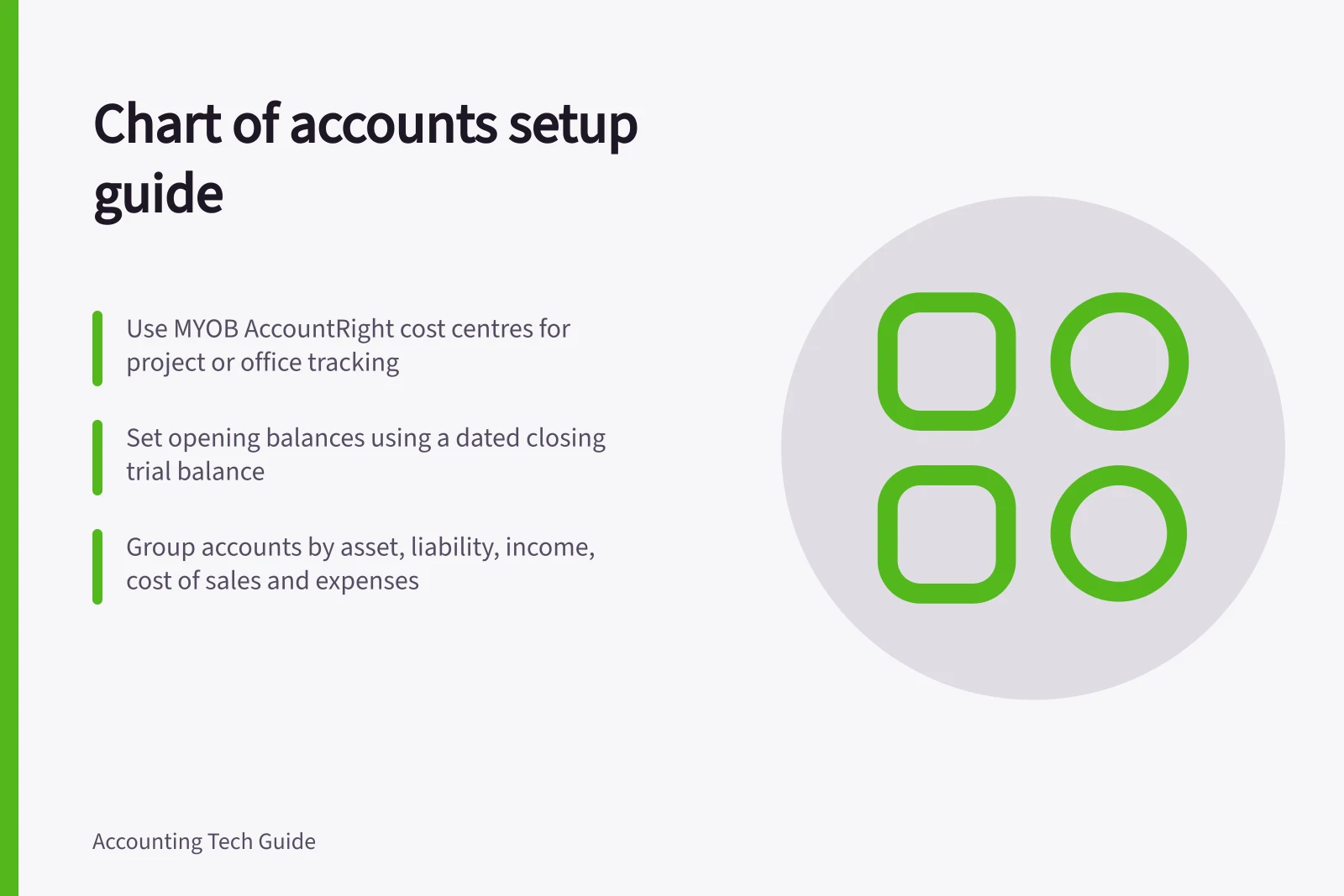
Charts commonly group accounts as assets, liabilities, equity, income, cost of sales and expenses. Names vary by product. In the MYOB Business browser interface, general ledger accounts are called categories: header categories organise detail categories, and transactions are allocated to detail categories. AccountRight also uses the term cost centres for a separate segment reporting feature.
Setup decision / Question to settle
- Account purpose
- Which transactions belong here?
- Account type
- Will the balance appear in the intended report section?
- Level of detail
- Does a separate account support a decision or reconciliation?
- Default tax code, where used
- Who checks that it suits the transactions normally posted here?
- Changes
- Who can add or change accounts after launch?
AccountRight supplies a list of basic accounts when you create a company file. Review it to reflect how cash moves in and out of your business, adding, editing or deleting accounts as needed.
Choose account types and codes
Most accounting software supplies a default chart of accounts you can customise. Xero groups accounts under five main types: assets, liabilities, equity, revenue and expenses. MYOB uses eight classifications: Asset, Liability, Equity, Income, Cost of Sales, Expense, Other Income and Other Expense. Within each classification there is at least one type.
MYOB identifies each category with a unique five-digit code in the browser version; the first digit shows the classification, so categories starting with 1 are assets, and lower numbers appear higher in the list. AccountRight uses a four-digit number that must be unique within each account classification.
You can have up to three header category levels; transactions are allocated only to detail categories. A header category's balance is the sum of the detail categories indented directly below it.
Name accounts specifically and group them correctly so reports are useful. A service business may not need inventory accounts but will need to track services income; break down income streams and expenses where a separate account supports a decision. Your accountant or bookkeeper can review the list before you rely on it.
Keep the chart useful
Use separate accounts for balances that need different treatment or reconciliation, such as individual bank accounts and loans. An office or project may instead be a tracking label applied to the same expense account. Check which labels and reports the chosen product supports before relying on that design.
Define accounts that staff could confuse. For example, say whether ‘Software subscriptions’ includes a one-off implementation charge. Ask the accountant to settle classifications that need judgement. Review unused and near-duplicate legacy accounts before carrying them into the new chart.
Where a department, office or other segment needs its own view, MYOB AccountRight cost centres act as labels on transactions. They feed cost centre balance sheet, general ledger and profit and loss reports, and you can consolidate cost centres across the business.
Plan payroll accounts
Payroll often needs several expense accounts so labour costs are visible: wages for salaried staff, wages for casual staff, superannuation expense, leave expense or leave accruals, payroll tax, and WorkCover or workers' compensation. When payroll software exports journal entries, each pay category and on-cost is mapped to one or more chart accounts.
Set the changeover boundary
Agree on the opening date, financial year, GST settings and responsibility for entering invoices and bills. Decide whether the new system will contain opening balances and unpaid items, or earlier transactions as well. Keep the earlier records needed to explain periods that are absent from the new system.
Use a dated closing trial balance to prepare opening amounts, allowing for any documented year-end entries or agreed changes in account structure. Compare each bank ledger balance with its statement and identify uncleared transactions.
Check that unpaid customer and supplier items explain their respective control balances. If stock is tracked, compare its ledger value with the item quantities and values being brought in. Have the accountant resolve differences before approving the starting figures.
Many businesses choose the start of a new BAS or GST period, or the start of the financial year, as the change-over date. Aim to lock in the date two to four weeks before switching.
Decide whether to bring across only opening balances or full transaction history; bringing more history means more cleaning and checking. Importing transactions is only possible if you move to MYOB AccountRight. Involve your accountant or bookkeeper before importing so they can review the chart of accounts and GST codes.
Setting the changeover boundary: key steps for Australian businesses
- Agree on opening dateTypically the start of a new BAS or GST period, or financial year.
- Prepare opening balancesUse a dated closing trial balance and reconcile bank statements, including uncleared transactions.
- Review control balancesEnsure unpaid customer and supplier items match control account balances.
- Check stock valuesCompare ledger value with physical quantities and values brought into the new system.
- Finalise with accountant approvalResolve discrepancies before locking in the starting figures.
Check the setup
Run a trial balance, balance sheet and profit and loss for the relevant date or period. Trace a few ordinary transactions through the reports, including an invoice and receipt, and a supplier bill and payment. Check that payments clear the amounts owing without duplicating sales or expenses.
Save the approved chart, account descriptions, opening date and opening balance reports. Assign an owner to later account changes so the chart stays consistent.
In MYOB AccountRight, review the accounts list summary report from the Accounts command centre. The browser version has a Categories list report under the Reporting menu. Both let you check account names, numbers and groupings before you save the approved setup.
Pre-launch checklist: reviewing your chart of accounts
- Run trial balance and financial reportsVerify accuracy of opening balances and report integrity.
- Trace key transactionsTest invoice, receipt, bill and payment to ensure correct account allocation.
- Review unused or duplicate accountsRemove legacy accounts that no longer serve a purpose.
- Assign ownership for future changesDesignate a responsible person to maintain consistency.
- Save approved setupRetain account descriptions, opening date and balance reports.
In this guide
- Mapping existing accounts into a new systemBuild an account crosswalk, resolve merges and splits, and check the new chart and opening figures against old records.
- Separating tracking categories from general ledger accountsDecide when a transaction needs a separate ledger account and when a tracking label or cost centre answers the reporting question.
- Reviewing opening balances with an accountantPrepare a dated opening balance pack and reconcile bank, debtor, creditor and stock figures before approval.