Invoicing
Part of Invoicing and accounts receivable tools
Testing recurring invoices before enabling automation
Check recurring invoice templates, schedules, sending, changes and duplicate risks before turning on automated billing.
Test one recurring customer charge before allowing its schedule to run with less supervision. Check what the template creates, when it creates it, whether the result is a draft or issued invoice, and whether the customer receives it. Then check a changed contract and a skipped period. The central risk is charging the same service period twice or failing to charge it at all.
Set up a controlled first run
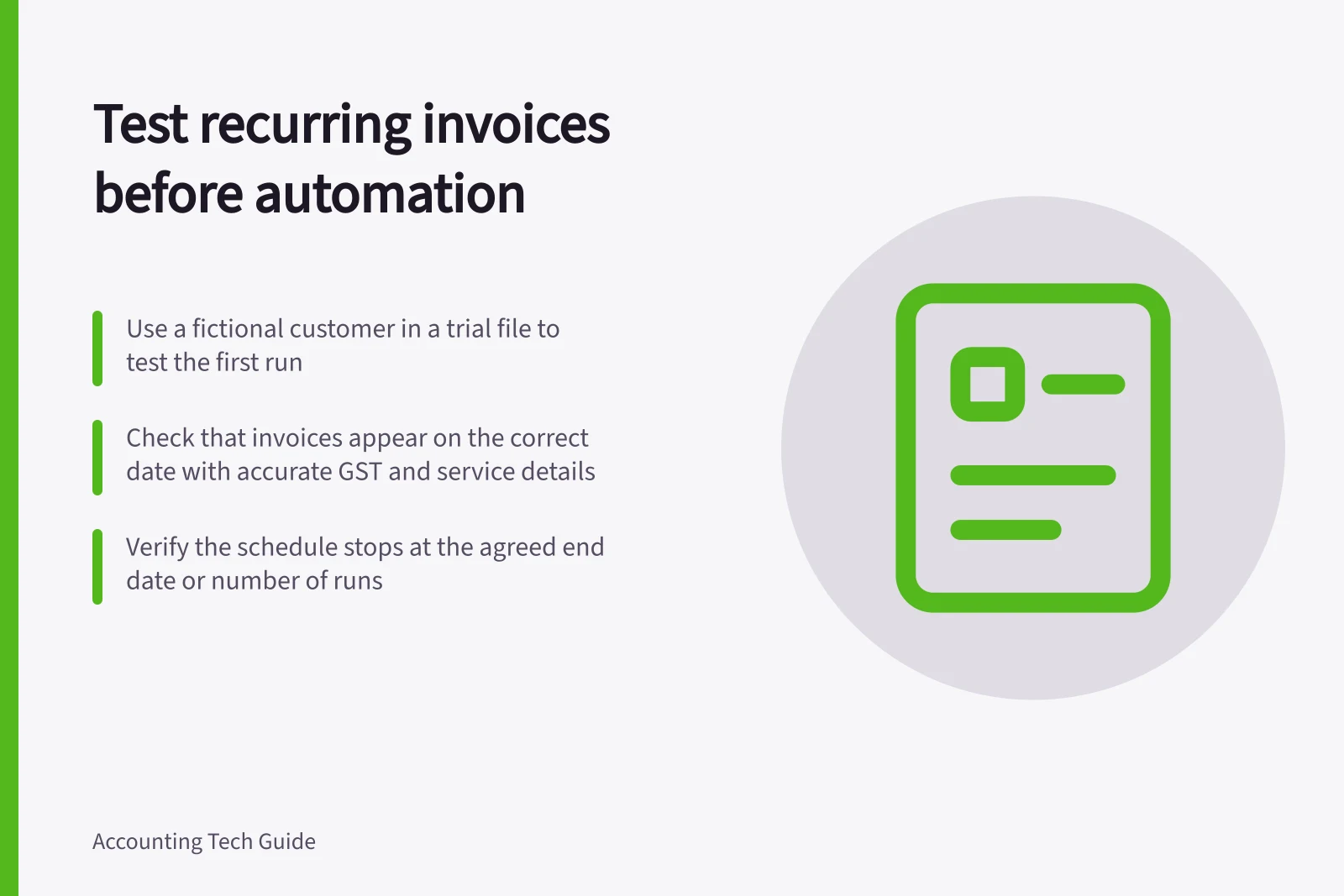
Use a fictional customer in a trial file, or a controlled internal recipient if an email address is required. Leave automatic sending off until the output has been reviewed. Record the product variant, subscription, user role and relevant settings; a demonstration account may have permissions that ordinary staff lack.
Choose one agreement with a known interval, service description, amount and end condition. Name the person who approves the template and the person who checks the first live run. Decide the contract terms and GST treatment before using them in the template.
Follow a scheduled cycle
| Check | What to inspect |
|---|---|
| First run | Does the invoice arise on the intended date with the right service period and due date? |
| Customer document | Are the customer, amount, description, GST presentation and payment details correct? |
| Approval and sending | Is the result a draft, an issued invoice or an emailed invoice? What action moves it between those states? |
| Numbering | Is the new invoice distinguishable from the template and earlier invoices? |
| Receivables | Does the charge appear once in the open-invoice view? |
| End condition | Does the schedule stop on the agreed date or after the agreed number of runs? |
Inspect a second cycle as well. Do not assume that manually creating an invoice from a template advances its schedule.
Intuit warns that manually using a recurring template does not stop its next automatic run. Check the next scheduled date before a manual test creates another charge for the same period.
Scheduled cycle inspection steps
- First run: invoice date and service period
- Verify on intended date with correct due date
- Customer document accuracy
- Check customer, amount, description, GST, payment details
- Approval and sending state
- Confirm draft, issued, or emailed status and transition steps
- Invoice numbering
- Ensure distinguishable from template and prior invoices
- Receivables check
- Charge appears once in open-invoice view
- End condition validation
- Schedule stops at agreed date or after set number of runs
Try changes and exceptions
Change one trial detail at a time: amount, customer contact, service description or end date. Check which future invoices change and whether an earlier issued invoice remains explainable. If the amount varies each period, a reviewed template may suit the business better than an unattended charge.
Try a paused agreement, a skipped cycle and a failed or repeated run. Determine whether the product holds, creates or sends the next invoice. Inspect the open-invoice list before retrying an uncertain period: different invoice numbers can still represent the same service.
Provider instructions differ. MYOB documentation describes setting up a recurring transaction's schedule and an alert option that either reminds a specific user to record it or records it automatically. QuickBooks Online documents Scheduled, Reminder and Unscheduled templates for Essentials, Plus and Advanced.
Its recurring-invoice help mentions automatic email settings but also says created invoices are saved as drafts for review. Confirm the approval and sending sequence in the intended QuickBooks account. Xero describes automatically created and sent repeating invoices; check the chosen plan and settings before using that route.
Recurring invoice behaviour across platforms
- MYOB
- Schedule with optional alert (reminder or auto-record)
- QuickBooks Online
- Scheduled, Reminder, and Unscheduled templates; invoices saved as drafts
- Xero
- Automatically created and sent repeating invoices; requires plan and settings confirmation
Move to live billing in stages
Approve the template fields, schedule, recipient, accounting treatment and exception owner. Review the first created invoice against the agreement before deciding whether automatic sending is suitable. Monitor the first live cycles for missing or repeated charges.
Keep a register of active templates with the customer, agreement reference, interval, next run, end condition and owner. Review it when prices, contacts or services change. Every invoice produced by the schedule should remain explainable.